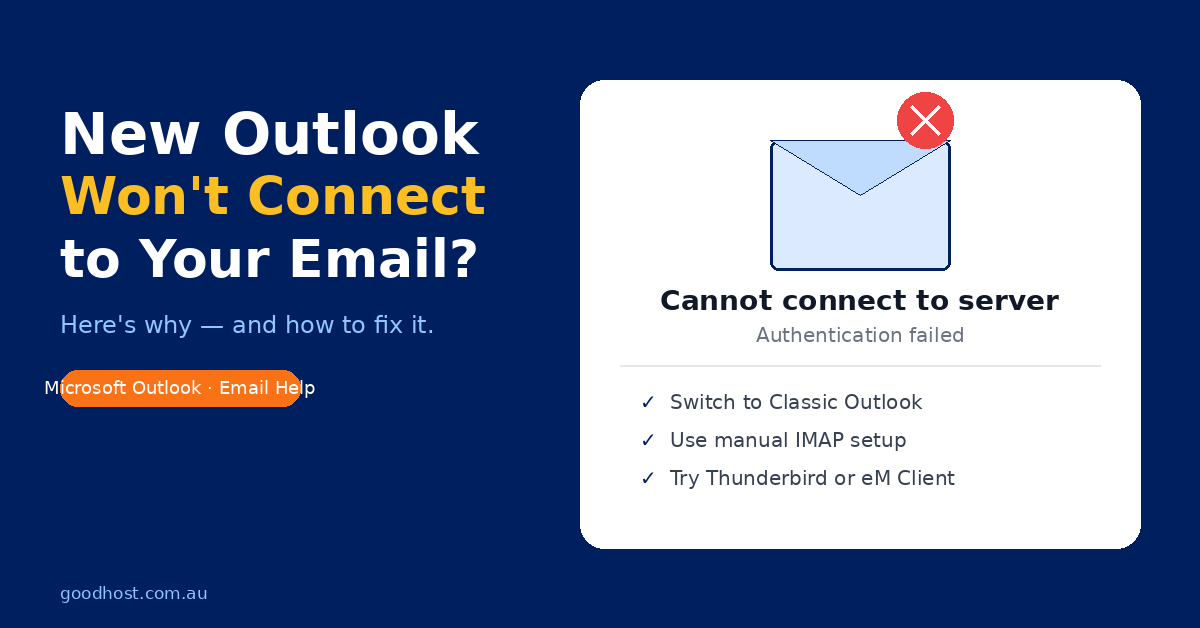
If you’ve recently updated to the new version of Microsoft Outlook and suddenly can’t connect to your business email, you’re not alone. We’ve been hearing from GoodHost clients across Australia who are running into this exact problem.
The culprit? Microsoft’s complete redesign of how Outlook handles email accounts.
What Changed With the New Outlook
Microsoft has been aggressively pushing users to switch from “classic” Outlook to their new version. You might have seen the toggle in the top right corner saying “Try the new Outlook” or been prompted to upgrade. Windows 11 users are finding that the new Outlook is now the default, replacing the old Windows Mail app entirely.
Here’s the problem: the new Outlook doesn’t connect directly to your mail server anymore. Instead, it routes your email through Microsoft’s cloud infrastructure first. For businesses using third-party email hosting — like the cPanel-based hosting GoodHost provides — this creates all sorts of authentication and connection issues.
The new Outlook has also dropped POP3 support completely. If your email was previously set up using POP3, the new Outlook simply won’t work with your account at all.
Why This Affects GoodHost Clients
GoodHost uses cPanel-based hosting with direct mail server connections. Your email is hosted on our servers and your email client — whether that’s Outlook, Thunderbird, or anything else — connects directly to our mail servers to send and receive.
When Microsoft inserts their cloud infrastructure into the middle of that connection, things break. We’ve seen GoodHost accounts that worked perfectly for years suddenly refuse to connect after the Outlook update.
Common symptoms include:
- The account setup wizard fails to find your server settings
- You can receive emails but can’t send (or vice versa)
- Constant password prompts even though you’re entering the correct credentials
- Error messages about server certificates or security settings
- The setup process just hangs indefinitely
How to Fix It
Option 1: Switch Back to Classic Outlook
If you still have the option, the quickest fix is reverting to classic Outlook. Look for a toggle in the top right corner of the Outlook window that lets you switch back. Microsoft has been removing this option progressively, so it may not be available for everyone.
Option 2: Manual IMAP Configuration
Sometimes the new Outlook’s autodiscover process fails, but manual setup works. For GoodHost clients, use these settings to add your account manually:
Incoming Mail (IMAP)
- Server: mail.yourdomain.com.au
- Port: 993
- Encryption: SSL/TLS
Outgoing Mail (SMTP)
- Server: mail.yourdomain.com.au (same as incoming)
- Port: 465
- Encryption: SSL/TLS
Authentication
- Username: Your full email address
- Password: Your email password
If you’re unsure of your mail server settings, log into your GoodHost cPanel account and check under Email Accounts — the correct settings are listed there for each email address.
Option 3: Use a Different Email Client
If the new Outlook flat out refuses to cooperate (which happens more often than it should), it might be time to consider an alternative. Here are the ones we recommend for GoodHost clients:
Thunderbird (Free)
Available at thunderbird.net, this is a solid, reliable email client that connects directly to mail servers without any cloud routing nonsense. It works seamlessly with GoodHost’s mail servers and the auto-discovery picks up your settings correctly in most cases. The interface has been modernised recently, so it no longer looks dated.
eM Client (Free for 2 accounts, paid for more)
Available at emclient.com, this is the best choice if you want something that looks and feels like classic Outlook. Calendar, contacts, and tasks are all built in. The transition from Outlook is pretty seamless and it works well with cPanel mail hosting.
Mailbird (Paid)
Available at getmailbird.com, this Windows-only client has a clean, modern interface and handles multiple accounts well. Good option if you want something polished and simple.
The Bigger Picture
Microsoft’s push towards cloud-based email handling makes sense for businesses using Microsoft 365, but it creates real problems for businesses using independent email hosting like GoodHost.
If you’re running a small business with your GoodHost email, the new Outlook may simply not be the right tool for you anymore. The good news is that alternatives like Thunderbird and eM Client are mature, reliable, and designed to work with standard email protocols — exactly the way GoodHost’s mail servers are set up.
Need Help?
If you’re a GoodHost client struggling to get your email working after the Outlook update, get in touch with our support team. We can walk you through the correct settings for your account or help you get set up with an alternative email client.
You can reach us through the support portal in your GoodHost cPanel, or simply reply to any email from us. We’re always happy to help.